
How to Set Up Squeak N Snap: A First-Time User Guide
To set up Squeak N Snap, switch on the Bluetooth remote on the back of the plush, open your phone’s Bluetooth settings, and connect to “Selfie” (older units show up as “AB Shutter 3”). Then open your phone’s regular camera app, hold Squeak N Snap beside the lens, and give it one quick squeeze. It squeaks and takes the photo at the same instant. There’s no app to download, no account, and you only pair once.
Squeak N Snap takes about a minute to set up the first time, and after that it’s just squeeze and shoot. This guide walks through the first pairing, how to hold it for your first photo, and what to do if something doesn’t connect.
If you’d rather watch than read, the setup video is on our Welcome page, along with a spot to register your Joy Capture Kit.
What’s in the box
Your Squeak N Snap is Murph, a plush monkey with a real squeaker inside and a small Bluetooth camera remote that sits in the back. It also comes with a dust bag to keep it clean between photo sessions.
A quick note before you start: Squeak N Snap is a camera accessory, not a toy. It stays in your hand while you take photos, then goes back in its dust bag.
Set it up in four steps
Step 1: Turn on the remote
The Bluetooth remote lives in a spot on the back of Murph. Switch it on, and then leave it on. You don’t need to turn it off between uses. When it isn’t being used, the remote goes into standby on its own, so it won’t drain the battery. If you take the remote out to find the switch, slide it back in afterward. Our Welcome page shows how it sits, and upside down works well too.
Step 2: Pair it with your phone
On an iPhone, go to Settings > Bluetooth. On Android, go to Settings > Connections (or Connected devices) > Bluetooth. Make sure Bluetooth is on, then look under available devices.
Newer Squeak N Snap units appear as “Selfie.” Older units, and the remote in our setup video, appear as “AB Shutter 3.” They pair the same way, so tap whichever one you see. Once it says Connected, you’re done with this step for good. Your phone will remember it.
Step 3: Open your camera app
Squeak N Snap works with the camera app your phone already has. It acts like your phone’s volume button, which already doubles as a shutter button. Open the camera, set it to regular Photo mode, and frame your shot.
Step 4: Give it one quick squeeze
Squeeze and release. The squeak and the photo happen together. Check your camera roll and there it is.
Keep the squeeze quick. On some phones, holding the squeeze down can start a video or take several photos in a row instead of one.
How to hold it for your first photo
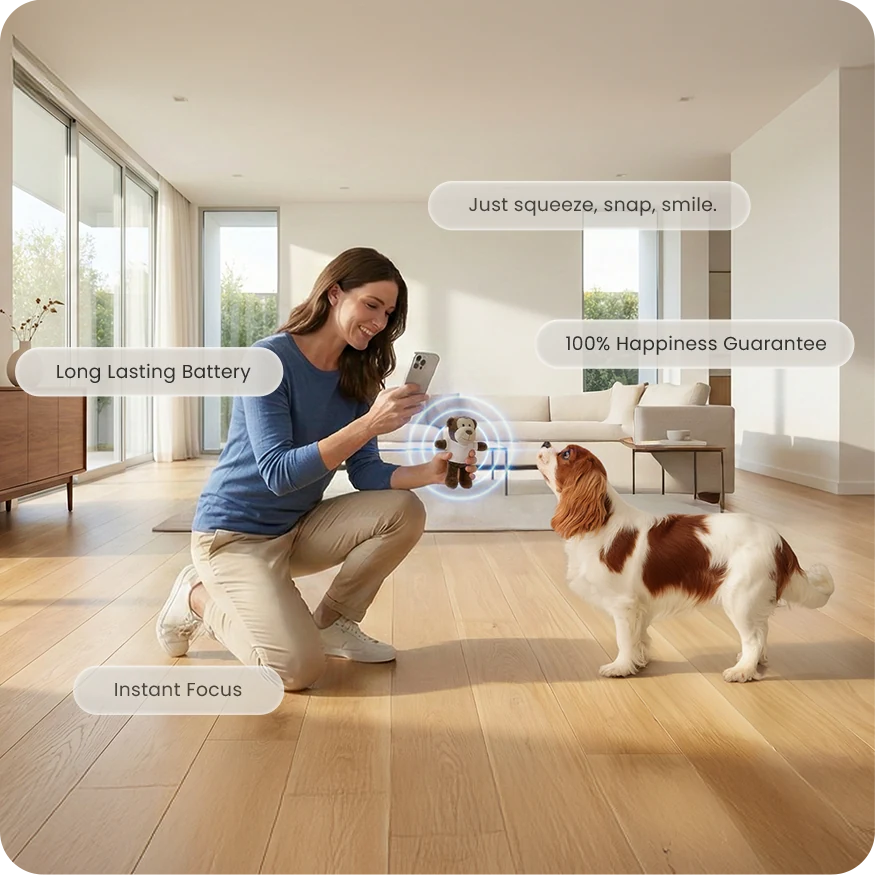
This is where most of the magic is. Hold your phone in one hand and Murph in the other, right beside the lens, so when your dog looks at the sound, they’re also looking at the camera.
Set everything up before the first squeak. The squeak is your one big moment of attention, so make sure the frame, light and focus are ready when you use it. Give your dog a few quiet seconds between squeezes, and reward with a treat after the photo, not before.
Want to take a photo you’re in? Prop your phone on a small tripod, step into the frame with your dog, and squeeze. No self-timer, no running back and forth. It works the same way for group photos and selfies.
If it isn’t working
Still stuck? Email us at hello@squeaknsnap.com and we’ll sort it out.
Taking care of it
Leave the remote on. It goes into standby by itself when you’re not using it, and a few squeezes wake it back up and reconnect it to your phone. Do that before you line up your shot, ideally out of your dog’s earshot, so the squeak your dog hears is the one that takes the photo. The coin cell battery lasts for years, so there’s nothing to charge or swap. When you’re done, slip Murph into the dust bag it came with to keep it clean, and keep it out of reach of kids and pets when it’s not in use. Squeak N Snap is made for an adult to hold and squeeze, not for chewing.
Now that you’re set up, here’s how to get your dog to look at the camera in one try, and if photos come out soft, 7 fixes for blurry dog photos.
Get the 5 Rules for Amazing Dog Photos
The short guide we hand out at demos and rescue events. Five things that separate a keeper from another near miss. Free, straight to your inbox.
Frequently asked questions
How do I connect Squeak N Snap to my phone?
Turn on the Bluetooth remote on the back of the plush, open your phone’s Bluetooth settings, and connect to “Selfie” on newer units or “AB Shutter 3” on older units. Then open your phone’s camera app and squeeze once to take a photo. You only need to pair it once.
Do I need to download an app for Squeak N Snap?
No. Squeak N Snap works with your phone’s built-in camera app on iPhone and Android. There’s no app, account or subscription.
What’s the difference between “Selfie” and “AB Shutter 3”?
They’re the Bluetooth names for the same type of remote. Newer Squeak N Snap units show up as “Selfie” and older units as “AB Shutter 3.” Both pair and work the same way.
Why does my Squeak N Snap squeak but not take a picture?
Usually the camera app isn’t open, the remote has disconnected, or you’re using a third-party camera app that doesn’t respond to Bluetooth remotes. Open your phone’s built-in camera, confirm Bluetooth shows Connected, and squeeze again. On Android, make sure the camera’s volume key setting is set to take pictures, not zoom.
Do I have to pair Squeak N Snap every time I use it?
No. Once it’s paired, your phone remembers it. Leave the remote on, open your camera, and squeeze. If it’s been sitting a while, the first few squeezes wake it from standby and it reconnects on its own.
Does Squeak N Snap need to be charged?
No. The Bluetooth remote runs on a coin cell battery that lasts for years. There’s nothing to plug in.
That’s the whole setup. Pair it once, hold Murph next to the lens, and let one squeeze do both jobs.
See how one squeeze squeaks and takes the photo at the same instant. See the Joy Capture Kit
Mom-in-Chief at Squeak N Snap. Her photography experience comes from demos, rescue events, product testing, and three kids who never sit still.